
We have all been there! You find the absolute most romantic calligraphy font on the internet. It has perfect modern flourishes, looks incredibly high-end, and it's going to add that gorgeous, fine-art touch to your reception tables.
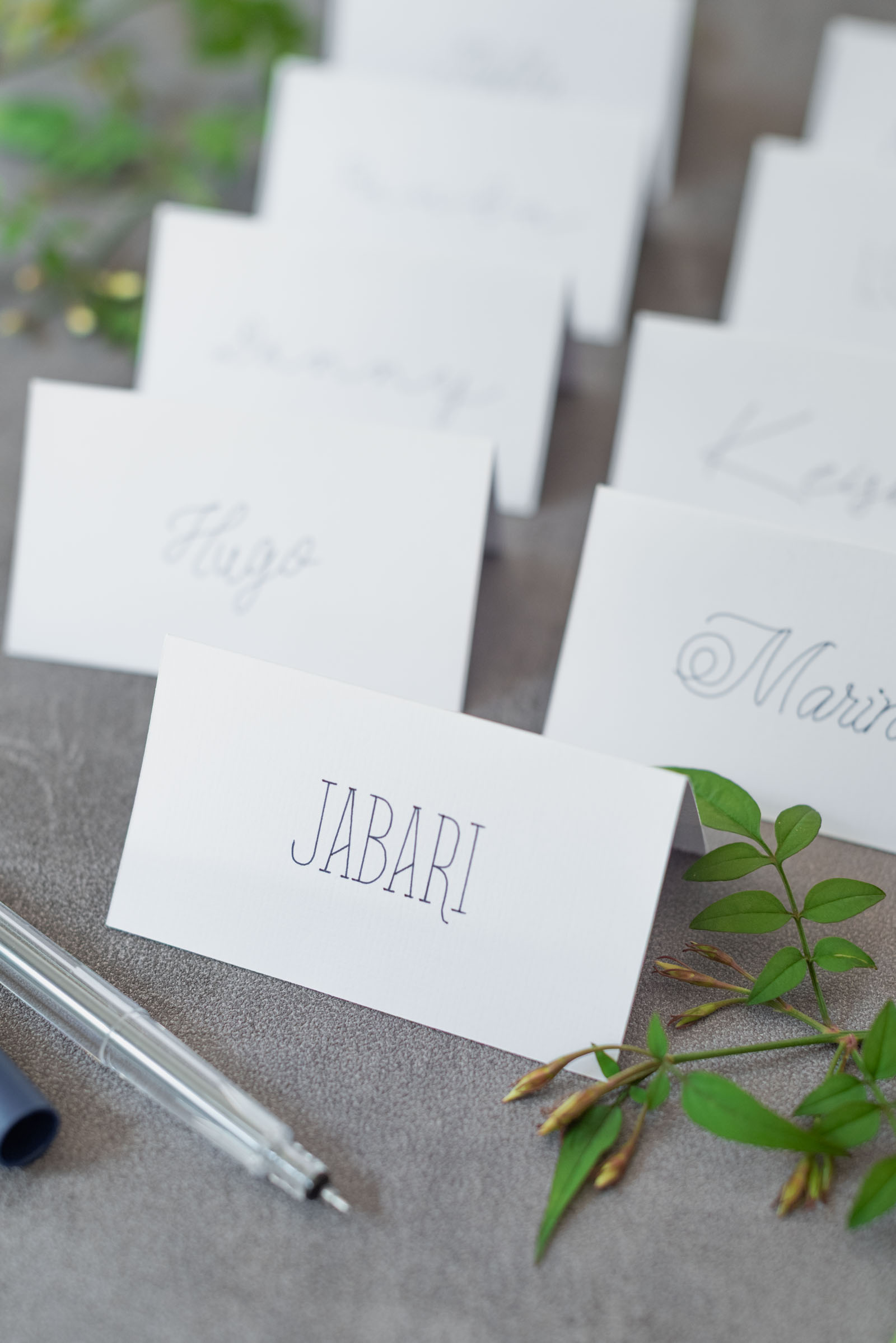
You download it, open Cricut Design Space, type out your wedding guest list, and switch the Operation type from Cut to Draw. Then, the heartbreak happens. Instead of writing like a beautiful, continuous ink pen, your Cricut pen outlines the names, leaving you with hollow, bubble letters on your place cards – perfect for a wedding coloring page, but not for elegant stationery!
If you're currently staring at your screen feeling that spike of DIY wedding anxiety, take a deep breath. You haven’t done anything wrong, and your machine isn't broken! You have just run into the "Single-Line Font" mystery, a very common experience for Cricut brides, grooms, and wedding makers.
So today with over 10 years of trials and errors with our Cricut machines under our belts, we're sharing exactly why this happens and how to get that flawless, elegant handwritten look for your wedding place cards without losing your sanity.
✎ Updated for September 2026: Revised to include Cricut Maker 5 information.
The Mystery: Why Fonts "Bubble" on Cricut Design Space
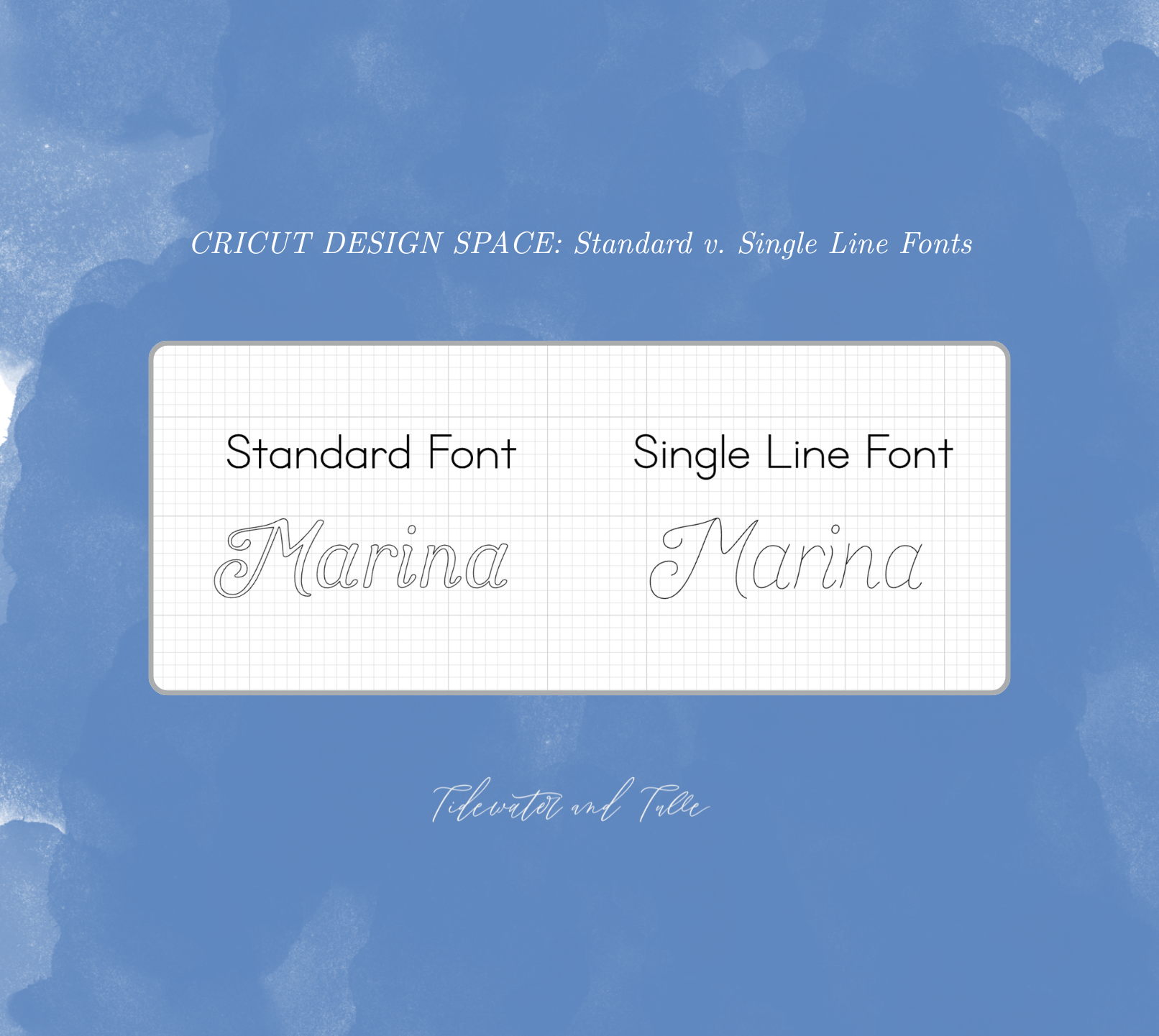
To fix the problem, it helps to understand how your Cricut thinks. Standard computer fonts (the .ttf or .otf files you download from places like DaFont or Creative Market) are designed for printing. To a computer, a font is a collection of shapes with inside and outside boundaries.
• When you Cut a font, your Cricut's blade traces the boundaries to pop the letter out.
• When you Draw with a standard font, your Cricut pen does the exact same thing.
Because a lot of popular wedding fonts are naturally thin, the machine tries to trace both sides of those boundaries, and ultimately, it rarely translates to the aesthetic you were looking for. On a tiny 2x3.5 inch place card, that hollow "bubble" effect comes across unfinished or messy.
To get a true elegant, single-stroke handwriting style, your machine needs a single line font. This is a font designed with a single vector line down the middle so the pen follows that one line once and moves on. No outlines in sight with this kind of font!
The Quick Guide to Cricut Wedding Writing Fonts
| Font Type | What Your Cricut Sees | Best Used For | Verdict |
|---|---|---|---|
| Standard Fonts | Outlines | Vinyl signs, t-shirt designs, cake toppers | Not ideal for most wedding pen projects. Will always result in hollow bubble letters when drawing. |
| Cricut Design Space Writing Fonts | Single lines | Place cards, favor tags | Perfect. Already formatted to be compatible with pen projects. Writes with a single, continuous pen stroke. |
| Third-Party Single Line Fonts | Single lines | High-end custom calligraphy looks | Excellent alternative. Requires searching for single line fonts outside of Design Space. May or may not need some testing to get the look you want. |
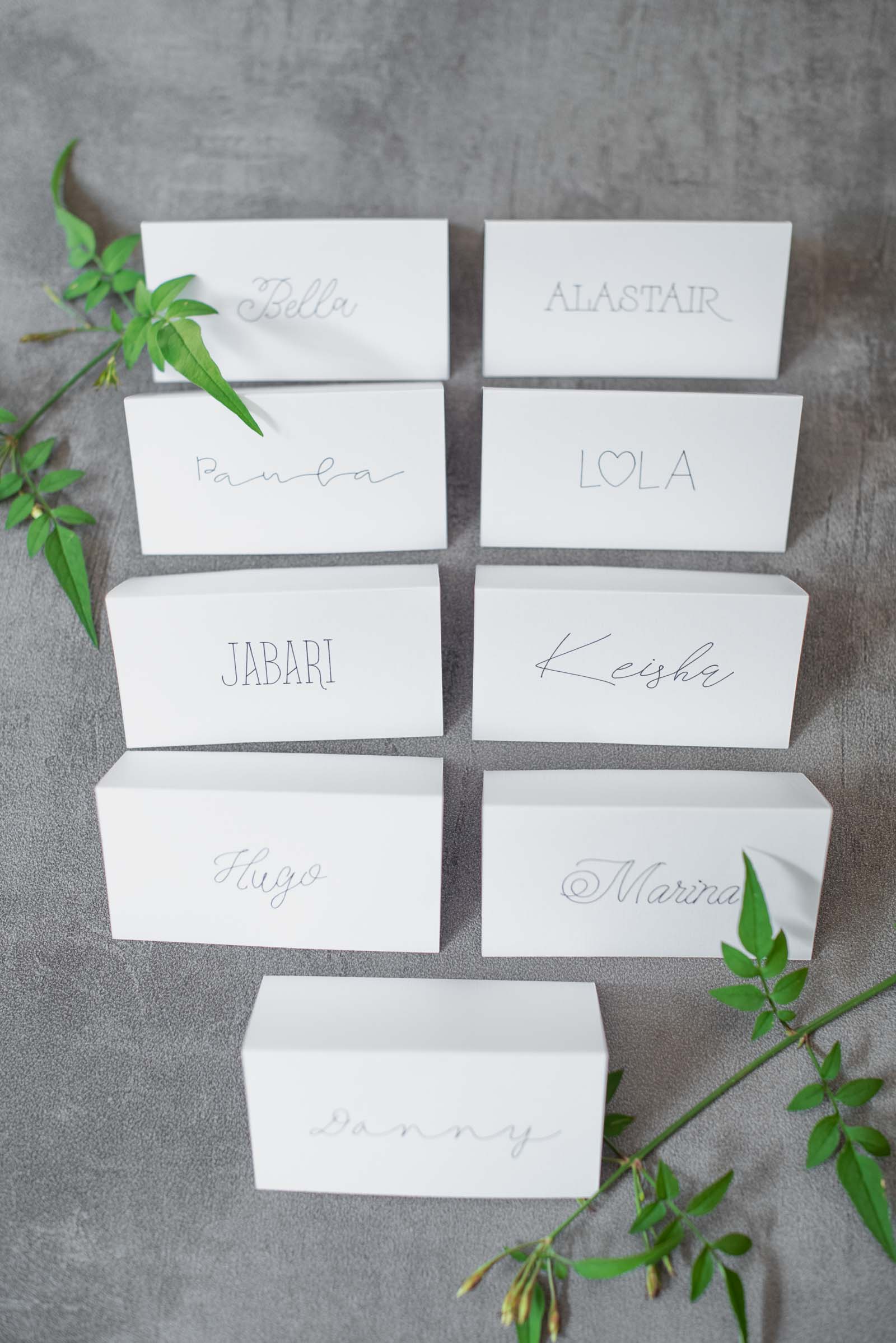
3 Ways to Get Elegant Single-Line Calligraphy for Your Place Cards
Since standard fonts won't give you that high-end calligraphy look, there are three methods that you can use to get the best writing on your wedding place cards or other stationery pieces: use Design Space writing fonts, source external single-line fonts, or try the Offset hack. Keep reading to learn about each of these and what might work best for your project!
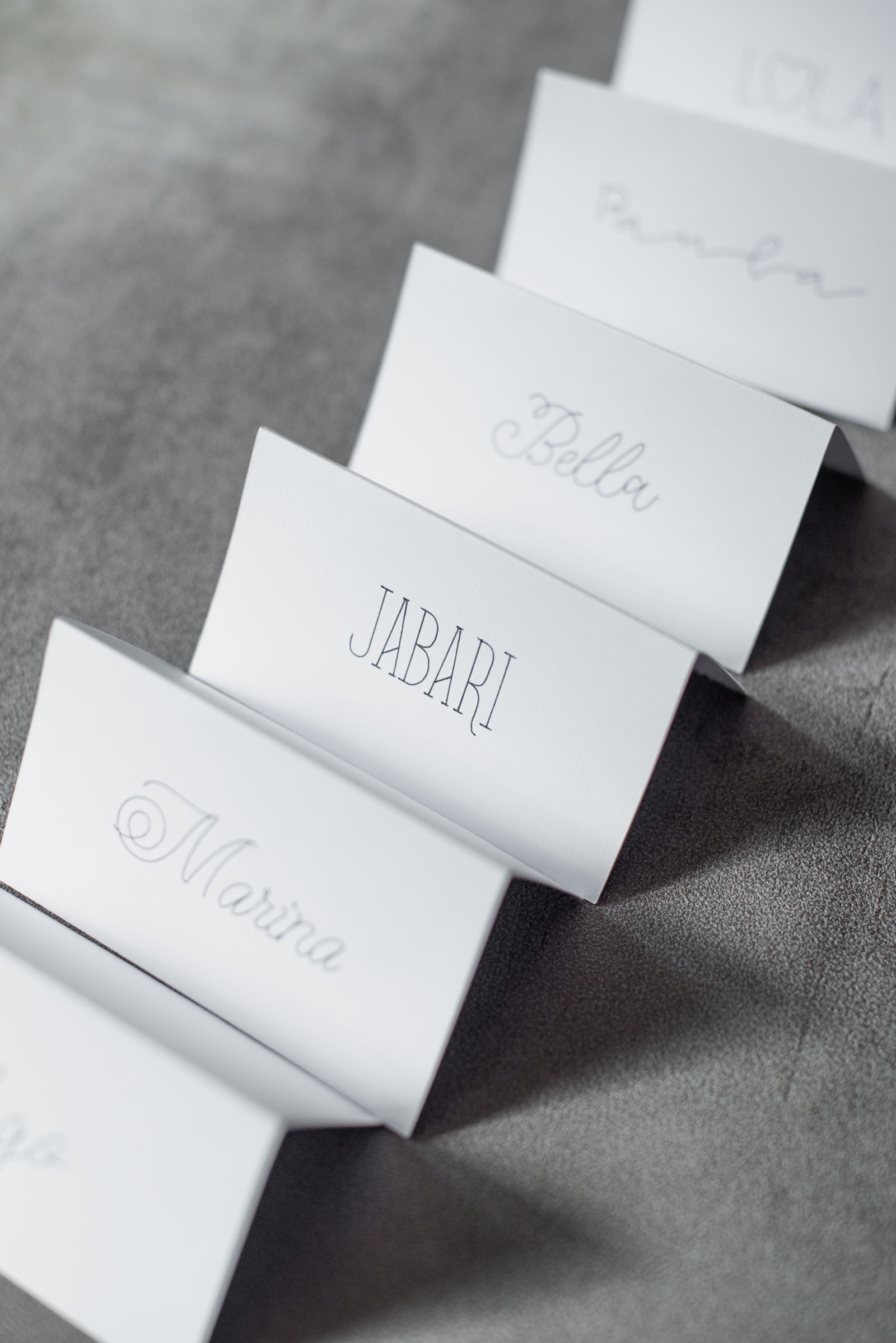
Method 1: Use the Built-In Design Space "Writing" Filter (The Easiest Way)
Cricut has gathered hundreds of true single-line fonts directly into Design Space, which are included in a Cricut Access subscription or available for one-off purchases. You just have to know how to filter for them.
How to Find a Writing Font in Cricut Design Space
➤ Add a text box to your Canvas, and type your guest's name.
➤ Click the Font menu and then tap on the Filter icon. Look for the two lines with two circles; this is Filter.
➤ Under Characteristics, check the box that says Writing. Fonts should auto-populate with a preview now!
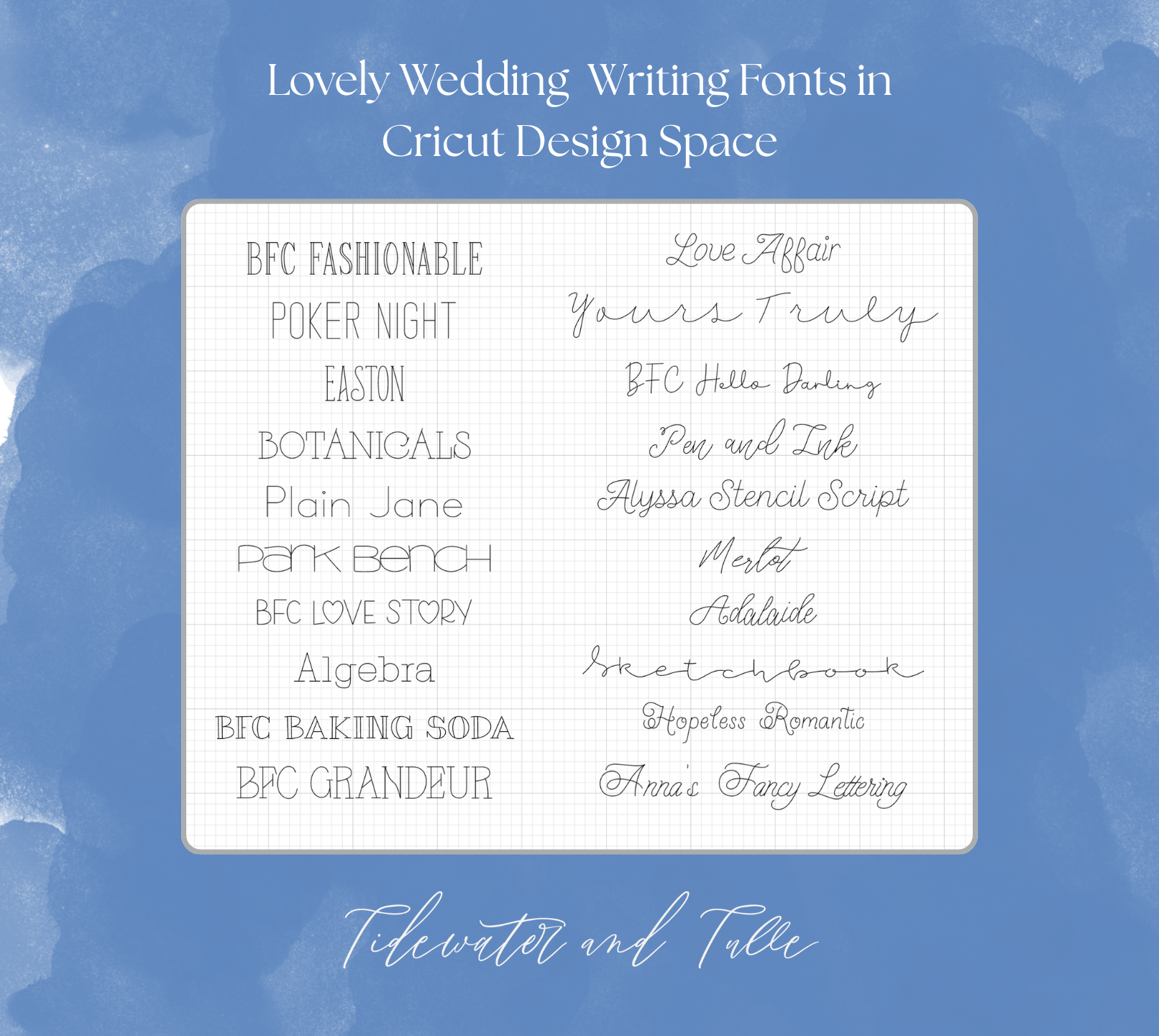
With the filter on, Design Space will hide standard "cut" fonts and only show you fonts that have a built-in single-stroke writing style. Search for romantic scripts like Anna's Fancy Lettering (Victoria), Merlot, and Love Affair for an elegant wedding aesthetic.
If you've already added a text box to your Canvas, you can also click "Font Style" in the menu to see if there is a Writing style for a Design Space font you previously chose.
Overwhelmed with the options and want a starting point for finding a perfect wedding font? We've created a DS project with all of our current wedding Writing font favorites so you can easily bookmark and save for later (as seen below)!
Method 2: Source External Single-Line Fonts
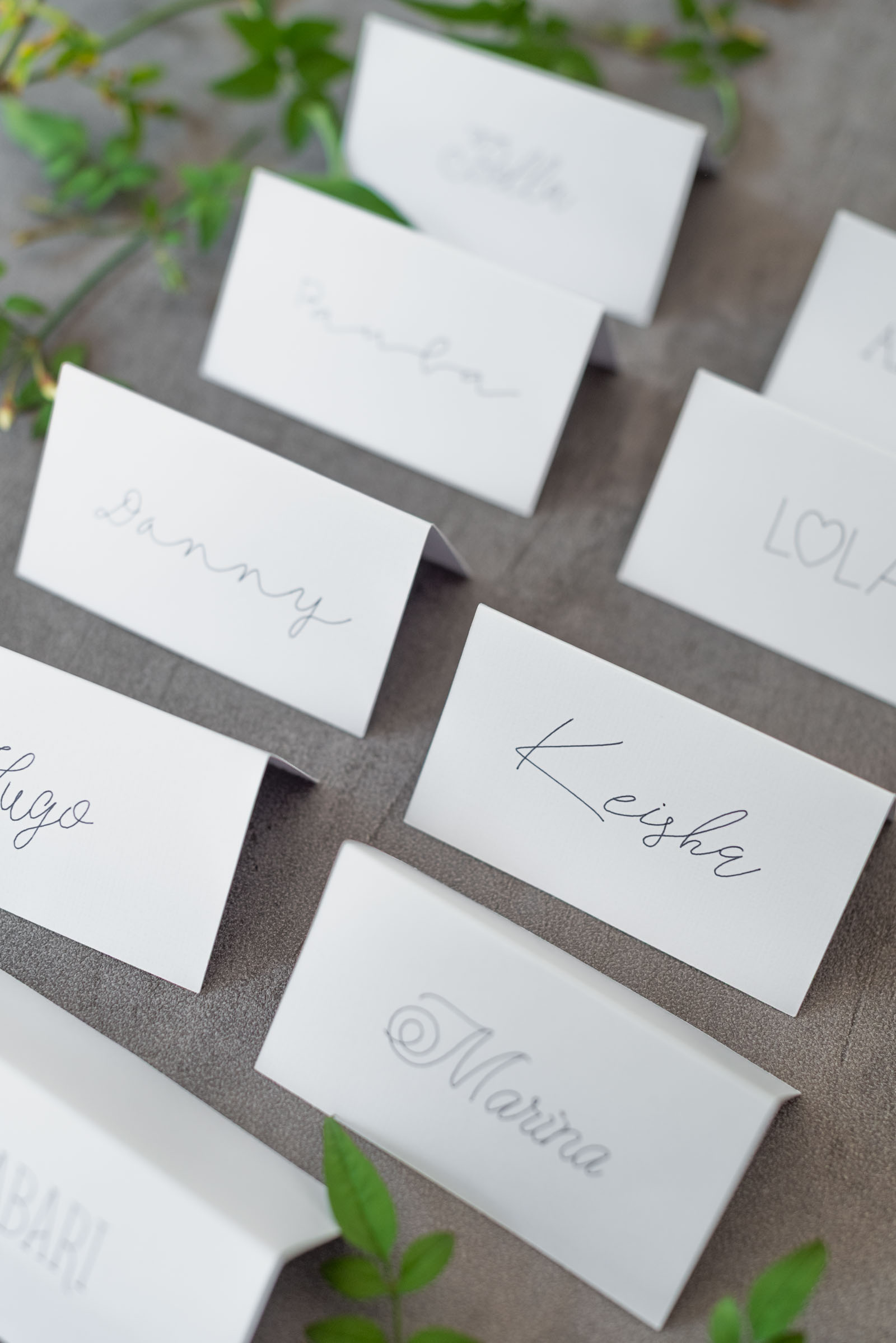
If you don't love the native Cricut Design Space options and want a very specific modern or fine-art wedding calligraphy style, you can source single-line fonts online, too. These are technically "standard font" file types, but they have been specially formatted to be single-line.
Marketplace websites like Creative Fabrica and Etsy have font creators who create fonts specifically for Cricut pens. When searching, always use the terms "Single Line Font Cricut" rather than "Thin Calligraphy Font."
Need some ideas? We love this single line calligraphy font bundle by Subectype, a professional font designer on Etsy!
You would then download the font to your computer and see all of your computer's available System Fonts under Design Space's Font menu. No importing required!
DIY Pro Tip: If you come across .opf (Open Path Fonts) files because they are single line fonts, note that Cricut Design Space can't read this file type, so when searching on the web, contact the seller first or look for a listing note saying that your chosen font is compatible with Cricut writing projects.
Method 3: The "Offset Tool" Fill Hack (For Standard Fonts)
If you're absolutely determined on using a standard font and your Cricut is drawing your place card names as an outline (we share your stubbornness!), you can sometimes hack Design Space by using the Offset Tool.
We don't usually recommend this for wedding DIY as it takes a lot more time to do, and when you have 50+ place cards to make, being savvy with the limited wedding planning time you have is important! But if you're a more experienced Cricut crafter with some extra time, try this method:
➤ Select your text layer and change the operation to Draw. (If using a script font, you may need to Unite your letters to avoid showing the "connections" in between your letters.)
➤ Click the Offset tool in the toolbar. At the time of writing, this is found under Effects.
➤ Instead of dragging the slider to the right to make a usual bulgy shadow layer, drag it to the left into negative numbers (try starting super small at -0.02 or -0.03). This creates a brand new line inside the bubble letter.
➤ Click Apply, delete the original text layer, and keep the new inner offset layer.
You will need to experiment as you might still have a microscopic gap depending on the font, but a thicker pen tip (like a 0.4 fine point or 1.0 mm glitter gel pen) will naturally bleed into that tiny gap, making it look solid and hand-inked! Keep reading for more Cricut Pen details shared below.
Don't Forget the "Attach" Tool!
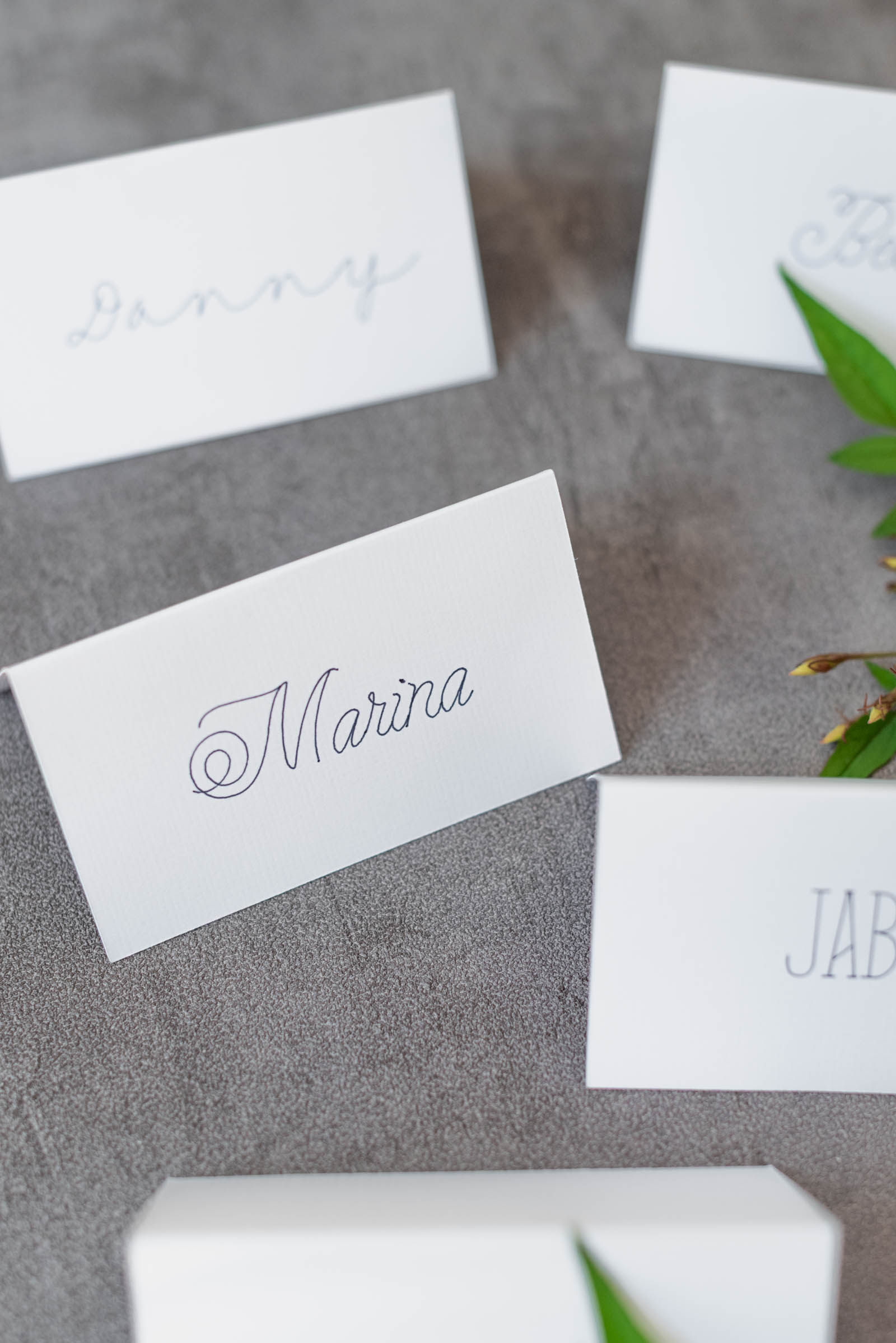
Once you find your perfect font and layout for your place cards, there is one final step to prevent paper wastage and your time! Before you click "Make It," you must select your place card shape, Score line (if applicable), and your guest's name text box, then click Attach. You need to do this for each place card.
If you don't click Attach, Design Space will separate your gorgeous text from your card layout and try to draw all your guests' names on a blank mat by themselves. Attaching tells the machine: "Write this exact text on this exact piece of paper."
Need a refresher on DS? Head to our Cricut Design Space Essentials guide to see more about Attach and four other things to know!
Choosing the Right Cricut Pens for Your Wedding Place Cards
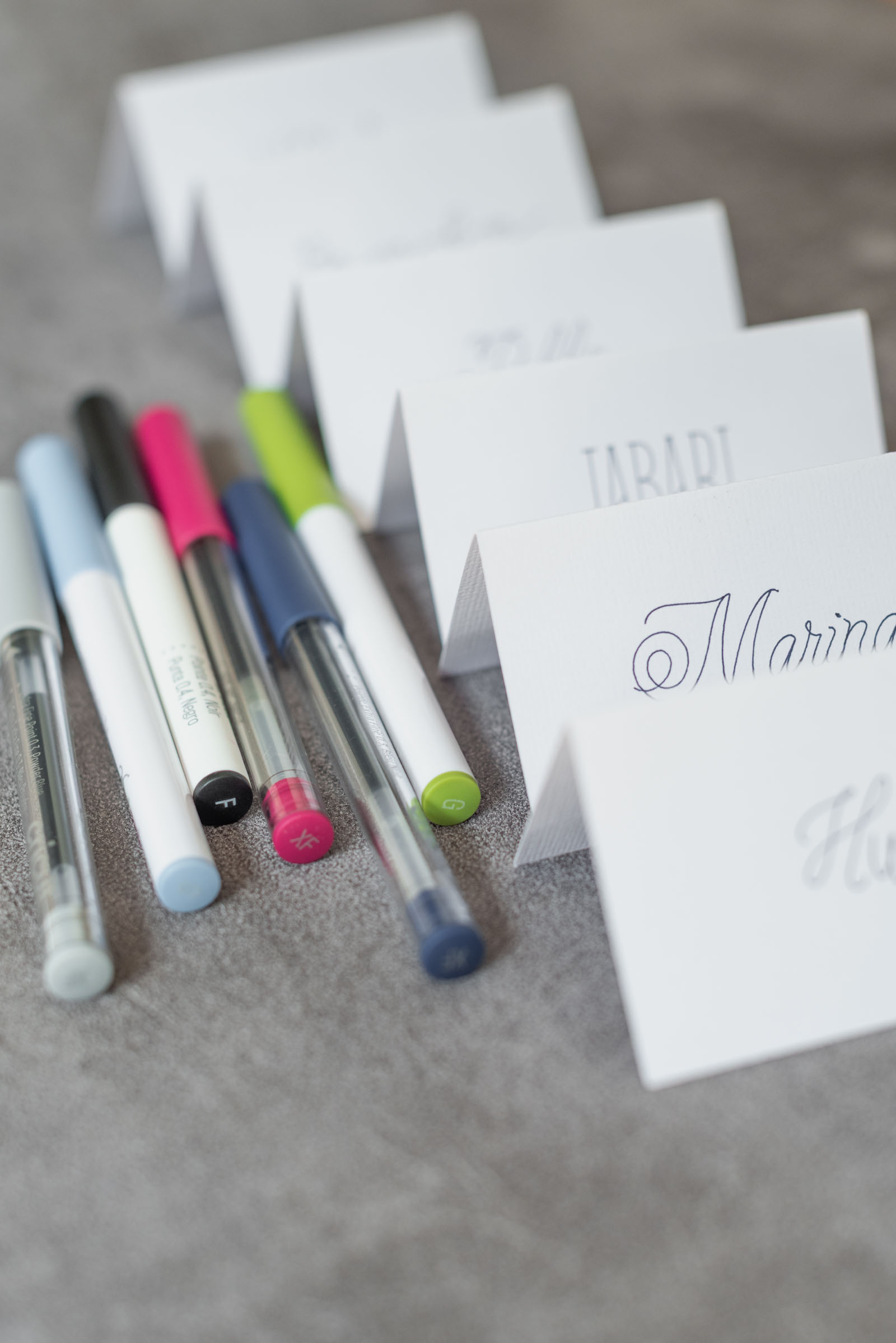
One of the biggest factors in how your place cards turn out is the pen you choose. Cricut offers a wide range of compatible pens — from extra fine point to calligraphy tips and metallic finishes — and each creates a noticeably different look depending on the paper you use.
✦ Extra fine point pens (0.3mm) are our top recommendation for its delicate, wedding-perfect crisp line quality on a variety of cardstock types. (It's the one you see in our photos!)
✦ Fine point pens (0.4mm) are ideal for colorful writing and most widely available to purchase anywhere. As a design note, you often get "ink dots" as the pen picks up and places down when writing.
✦ Calligraphy pens (2.0mm) give a more traditional, formal wedding feel with thicker lines.
✦ Gel pens and metallic markers (1.0mm) can add contrast and personality, especially on darker or textured envelopes.
Pen Compatibility Matters
In 2026, Cricut launched three new machines (Joy 2, Explore 5, and Maker 5), and with that, pen compatibility changed. Cricut's newest pen design is now compatible with all Cricut machines going forward (aka no more separate pen systems for different machine families!). For those of us who don't have these particular models, all machines can still use the older pens most commonly found in-store right now with the exception of Explore 5 and Maker 5.
Explore 5 and Maker 5 will only work with the new 'universal' pens. Check your Cricut packaging before buying to make sure compatibility for the model/machine you have – the front of the package will list all machines and will include an adapter for older machines.
THIRD WALL BREAK FOR SHAMELESS PLUG: If you want a deeper dive into Cricut pen types, tip sizes, ink behavior, and which styles pair best with different wedding stationery looks, you can find this in my book, Cricut Weddings, available in-store and online worldwide.
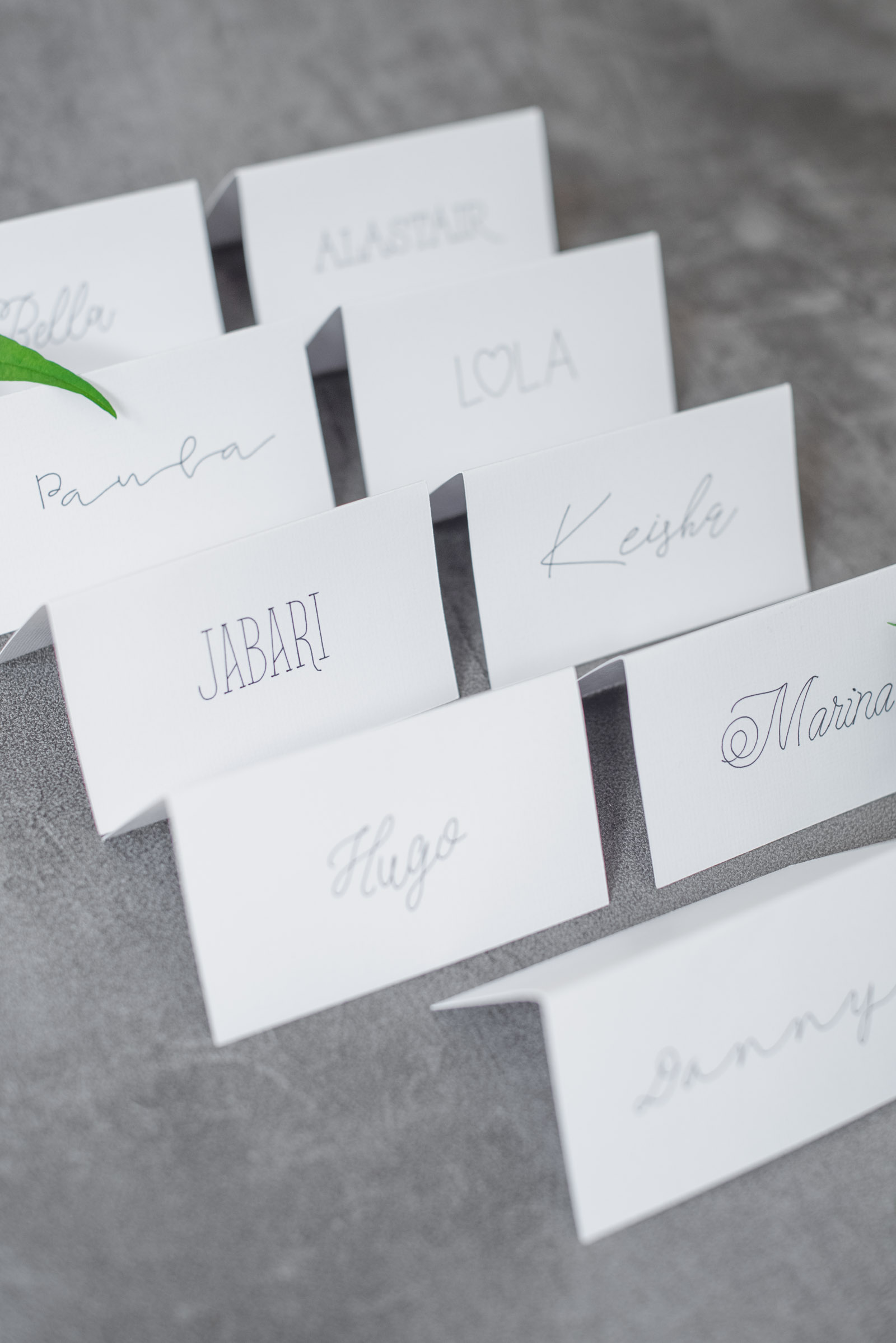
Using Off-Brand Pens with Cricut Machines
Can't find the color or effect you're looking for? Not-so-secret fact: you're not limited to branded Cricut pens! Many couples and crafters use third-party pens to get specific colors, finishes, or brush effects. This is typically done with a pen adapter that lets non-Cricut pens fit into the clamp on your machine.
This can be a great option if:
• You need an exact color match for your wedding palette
• You want a quality white ink on a dark envelope
• You want specialty inks or brush lettering effects
• You already own favorite calligraphy or art pens
However — and this is important — using off-brand pens and adapters is generally considered a modification and can void your Cricut warranty. If your machine is still under warranty, weigh that risk carefully before going this route. We recommend testing with official Cricut pens first, then explore adapters if you're not able to achieve the look you want.
Looking for more stationery help?
Once you master your place cards, check out our Ultimate Guide to Addressing Wedding Envelopes with a Cricut Pen to conquer your thank you cards next! Happy crafting!

WRITTEN BY
Chelsea Barton
Founder & Wedding DIY Expert
A former wedding photographer, the founder of Tidewater and Tulle, and author of Cricut Weddings, Chelsea Barton has been helping couples bring their dream weddings to life through creative, approachable ideas since 2009. Her insight and work have been featured in Martha Stewart Weddings, Southern Living, and other top publications around the world. She combines editorial expertise and real-world insight to inspire meaningful celebrations.
PHOTOGRAPHY CREDITS
Photography: Chelsea Barton
Editor's Note: Some above product links may be partner-connected and purchasing through these links means we get a small commission from those brands that helps support this website. You can find our full affiliate disclosure policy here on Tidewater and Tulle.